Stories for Webflow Instagram-style stories without building interactions
Story circles with photos and videos appear on your Webflow site with one line in Custom code. No interactions or CMS collections to set up, and you update stories without republishing.Set up in 5 minutes, no developer needed.
Stories builder: try it yourself
Tap a circle to open a story
Placement
Five ways to show stories on Webflow
- 1

As a block on the page
A row of circles anywhere on the page, for example under the header or above your product grid.
- 2

Floating in a corner
A capsule with three circles over your site in the bottom left or right corner that expands into the full list on hover or tap. Visible on every page.
- 3

As a side tab
A stack of covers at the edge of the screen that slides out on hover or tap. Doesn't cover your content.
- 4

As an island at the bottom
A dark pill at the bottom center of the screen with a stack of covers. Tap it to expand into a row of circles; it hides while you scroll down.
- 5
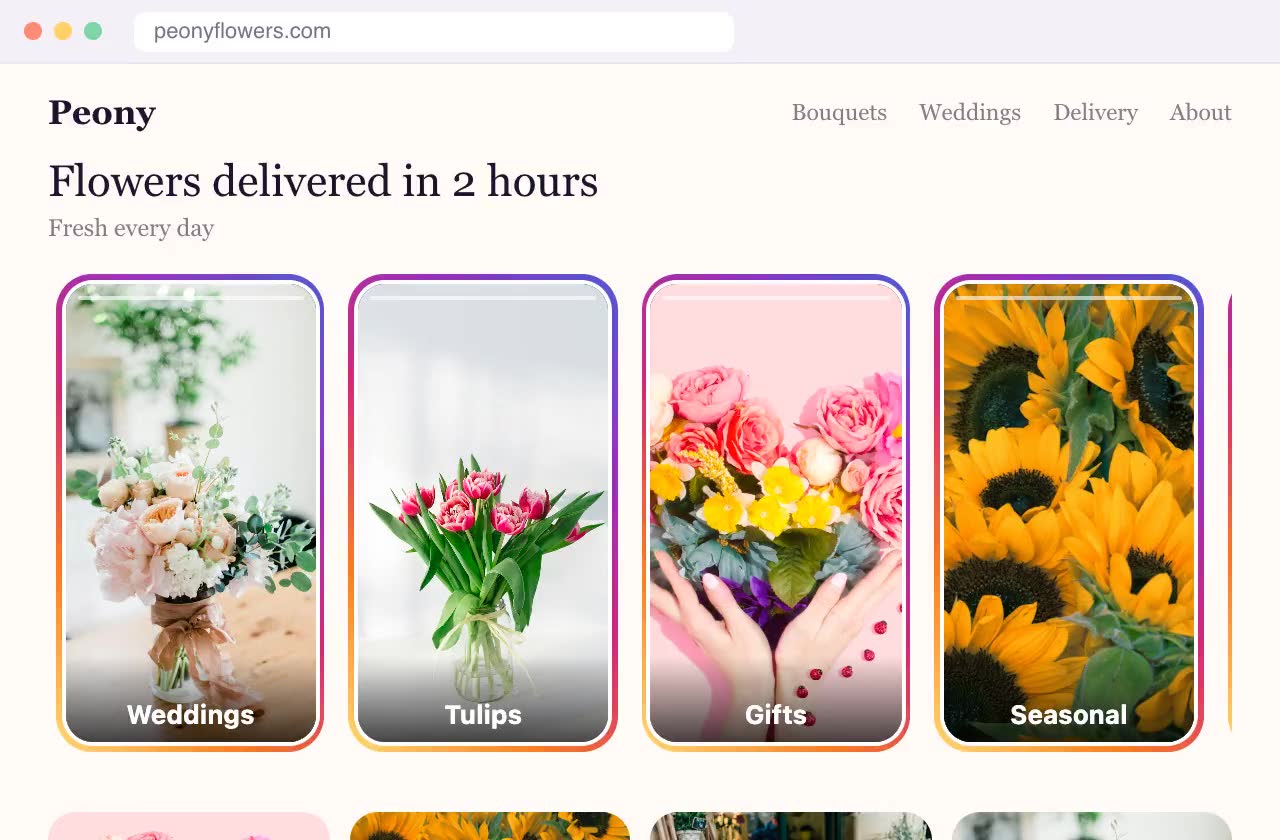
As cards on the page
Vertical 9:16 cards instead of circles, showing the first slide or a muted video and a headline. They look like part of your site design.
Why it matters
Not just trust and direct sales, but search rankings too
Drives engagement
Ringed circles invite a tap, and slides make people want to watch to the end. Visitors don't just scroll past: they watch, tap the buttons on slides and move on to your catalog, a deal or a chat.
Boosts engagement signals for SEO
While people watch stories, they stay on your site. Time on site and pages per visit go up, and search engines take these user engagement signals into account. That helps your site rank in search.
Features
Skip the custom build
Building stories with Webflow interactions takes hours and breaks on mobile. Here the full-screen viewer, swipes and autoplay are ready out of the box.




Photos and videos
Photos up to 10 MB and videos up to 50 MB (MP4, WebM, MOV). One story can have several slides.
A button on every slide
Link a slide to a product, a collection, a booking page or a chat, so stories on your Webflow site lead to action.
Just like Instagram
Full-screen viewer, auto-advancing slides, tap and swipe. Feels native on phones and desktops.
Matches your design
Ring color, circle size and captions are set in the editor, no theme edits needed.
Update without touching Webflow
New stories go live a minute after you publish them in Swoopkit. No theme edits, no republishing on Webflow.
AI builds them for you
Enter your website address and AI builds 25 stories from your own pages and photos in about a minute.
Guide
How to add stories to Webflow
The code goes into your site settings once and appears on every published page. Custom code needs a paid Webflow site plan.
- 1
Create stories in Swoopkit
Sign up, create a Stories widget, upload photos or videos and choose a placement: inline on the page, floating in a corner, a side tab or an island. Click Publish.
- 2
Copy your site code
In your Swoopkit dashboard, copy the line of code with your site key. It's the same line for all widgets.
<script src="https://swoopkit.app/loader.js" data-site="YOUR_SITE_KEY" async></script> - 3
Open Custom code
Open Site settings → Custom code.
- 4
Paste into Footer code
Paste the line into the Footer code box (before </body> tag) and click Save.
- 5
Publish
Publish your site. Custom code only runs on the published site, not in the Designer.
- 6
For inline stories: add a Code Embed element
In the Designer, drag a Code Embed element where the circles should appear, paste the block code, save and publish.
<div data-vzhuh="YOUR_WIDGET_ID"></div>
Examples
Who it's for
SaaS and startups
Product updates, feature demos and customer stories.
Agencies
Case studies, team and process.
Brands and stores
Launches, lookbooks and promos.
Events
Speakers, schedule highlights and venue.
Quick start
Live in 5 minutes, no developer needed
- 1
Build a widget
Pick a type, upload photos, write the text. The live preview shows exactly how it will look on your site.
- 2
Paste one line of code
Just once: every widget you add later appears on your site automatically. Works with Shopify, WordPress, Wix and any website.
- 3
Get leads
Leads arrive in your inbox and dashboard. Update offers and stories yourself, anytime.
Pricing
Free for 3 months, everything included
All widgets are free for 3 months with a small “Made with Swoopkit” badge, no credit card required. After that, the paid plan: widgets without the badge.
- All three widgets: stories, banners, contact button
- Unlimited views
- Leads by email and in your dashboard
- “Made with Swoopkit” badge
- All three widgets: stories, banners, contact button
- Unlimited views
- Leads by email and in your dashboard
- No “Made with Swoopkit” badge
- All three widgets: stories, banners, contact button
- Unlimited views
- Leads by email and in your dashboard
- No “Made with Swoopkit” badge
Start for free. Payment for the paid plan is coming soon to your dashboard.
FAQ
Questions about stories on Webflow
How do I add stories to Webflow?
Create the widget in Swoopkit, copy one line of code from your dashboard and add it to Webflow: open custom code, then paste into footer code, then publish. You do it once.
Do I need a paid Webflow plan?
Custom code needs a paid Webflow site plan.
Will stories slow down my Webflow site?
No. The widget loads after your page, asynchronously, and media loads only when someone opens a story.
Do I need to edit the code again when I change stories?
No. You add the code once. After that you change stories in Swoopkit and they update on your site in about a minute.
Can I show stories on one page only?
Yes. For inline stories, add the block code only to that page. For corner circles, the side tab and the island, set display rules in the editor by page address and device.
How much does it cost?
The first 3 months are free, no credit card required. After that, $7 a month or $15 for 3 months, and the plan includes all widgets: stories, pop-up banner and contact button.
Related
All widgets are included: use them together, they don't get in each other's way.